
Using xeol-operator

xeol-operator finds end-of-life (EOL) software inside the images your cluster runs. Think of an old Python, a Node.js release past support, or a Debian version nobody patches any more.
It scans every running image and keeps the results current. You see them in Grafana, in Prometheus alerts, or in its own small web page.
This guide shows you how to install it with Helm, read the results, and tune what it scans. For more detail, see:
- Helm setup: what each optional feature does and needs.
- Helm setup: every Helm value.
- Configuration: every scan setting.
- Air-gapped installation: clusters without internet access.
Before you start
Section titled “Before you start”You need:
- A Kubernetes cluster and Helm 3.
- Egress (outbound network access) from the cluster to
endoflife.date, for the EOL data, and to the registries your images come from. No egress? Follow Air-gapped installation. - Optional: kube-prometheus-stack (or any Prometheus Operator setup) for metrics and alerts.
- Optional: Grafana with the Infinity plugin for the dashboard.
The operator image is on Docker Hub as rishang/xeol-operator. The chart pulls it by default, using the chart’s appVersion as the tag.
1. Install
Section titled “1. Install”Add the chart repository:
helm repo add xeol-operator https://rishang.github.io/xeol-operatorhelm repo updateThen pick the install that matches your cluster:
For kube-prometheus-stack:
# serviceMonitor.enabled Prometheus scrapes the EOL metrics (PromQL, history). Needs the Prometheus Operator.# prometheusRule.enabled Alert rules: EOL software running or due soon, stale DB, failing scans. Needs the ServiceMonitor.# grafanaDatasource.enabled Infinity datasource + dashboard, loaded by Grafana's sidecars. Needs the Infinity plugin.helm install xeol-operator xeol-operator/xeol-operator -n xeol-system --create-namespace \ --set serviceMonitor.enabled=true \ --set prometheusRule.enabled=true \ --set grafanaDatasource.enabled=trueDoes your Prometheus only pick up ServiceMonitors and rules with a certain label? Then add that label, for example --set serviceMonitor.labels.release=kube-prom-stack --set prometheusRule.labels.release=kube-prom-stack.
Use the built-in web page and MCP tools instead:
# ui.enabled Built-in web page at http://<port-forward>/: findings, timeline, workloads, namespaces.# mcp.enabled Read-only MCP tools at /mcp for AI assistants (status, namespaces, workloads, findings).helm install xeol-operator xeol-operator/xeol-operator -n xeol-system --create-namespace \ --set ui.enabled=true \ --set mcp.enabled=trueInstall the chart from source for development, or to try unreleased changes:
git clone https://github.com/Rishang/xeol-operator.git && cd xeol-operatorhelm install xeol-operator ./helm/xeol-operator -n xeol-system --create-namespaceAdd the --set options from the other tabs as needed.
A few more install options:
- Both sets of options: you can enable the Grafana and the web page options together.
- A specific release: add
--version <version>.helm search repo xeol-operator --versionslists the releases. - A specific operator version: add
--set image.tag=<version>. - A registry mirror: set
image.repository. Also setimagePullSecretsif the mirror needs credentials.
Add vulnerability scanning to either install with --set trivy.enabled=true. Trivy then checks the same SBOM (the list of packages in the image) against its vulnerability database.
- The pod downloads that database (~1.6 GB) before it turns Ready.
- So allow egress to
mirror.gcr.io(orghcr.io), or see Air-gapped installation. - See Vulnerabilities (trivy) for what you get.
2. Check it’s working
Section titled “2. Check it’s working”kubectl -n xeol-system get pods # READY 1/1 once the EOL database is builtkubectl -n xeol-system port-forward svc/xeol-operator-metrics 8080 &curl -s localhost:8080/api/v1/status{"images_tracked": 42, "images_scanned": 42, "workloads_eol": 7, "db_age_seconds": 180, "last_sweep": "2026-10-31T10:25:01Z", "config_error": "", ...}What to look for:
- Ready: the pod turns Ready once the EOL database is built, about a minute after start. Scanning starts then.
images_scannedgrows towardsimages_tracked. By default, scans run one at a time and take roughly 5 to 60 seconds per image. So a large cluster takes a while on first start.last_sweepis set once every image has been scanned.workloads_eolis the number of workloads running software that is already past end of life.config_errorstays empty while the config file is valid.
Follow progress in the logs:
kubectl -n xeol-system logs deploy/xeol-operator -f | grep -E 'scanned|scan failed' # one line per image3. Read the results
Section titled “3. Read the results”Every view shows the same data:
- each running workload,
- the EOL products found in its images,
- the EOL date,
- how many days are left (negative once past).
“Due soon” means within the chosen window. The default window is 180 days.
Grafana
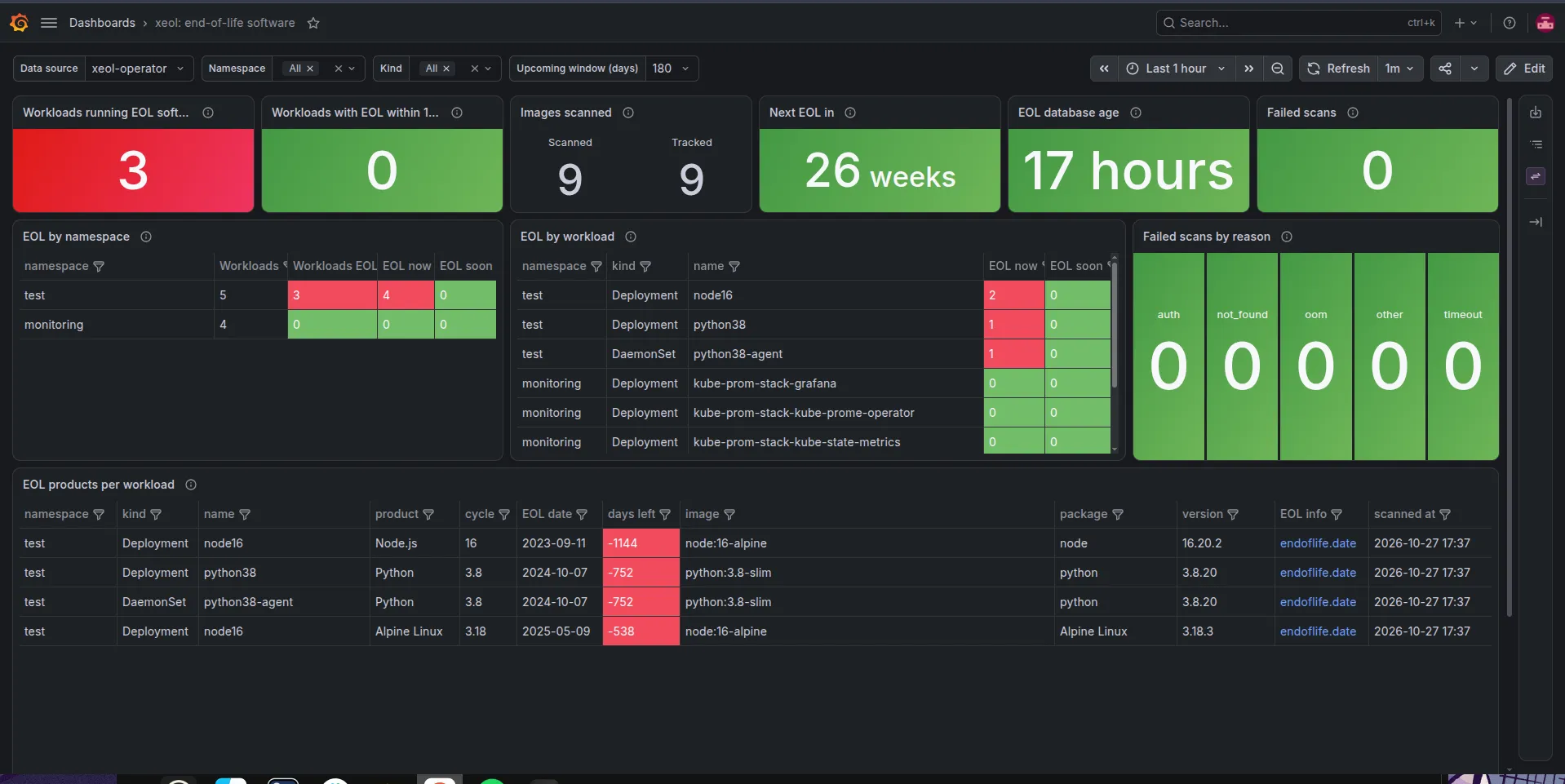
Section titled “Grafana”With grafanaDatasource.enabled, open the xeol: end-of-life software dashboard. It has:
- headline numbers,
- an “EOL products per workload” table (red: past EOL, yellow: due within 6 months),
- the full findings list.
Use the variables at the top to narrow by namespace and kind, or to change the “Upcoming window”.
Built-in web page
Section titled “Built-in web page”With ui.enabled, start a port-forward:
kubectl -n xeol-system port-forward deploy/xeol-operator 8080Then open http://localhost:8080/.
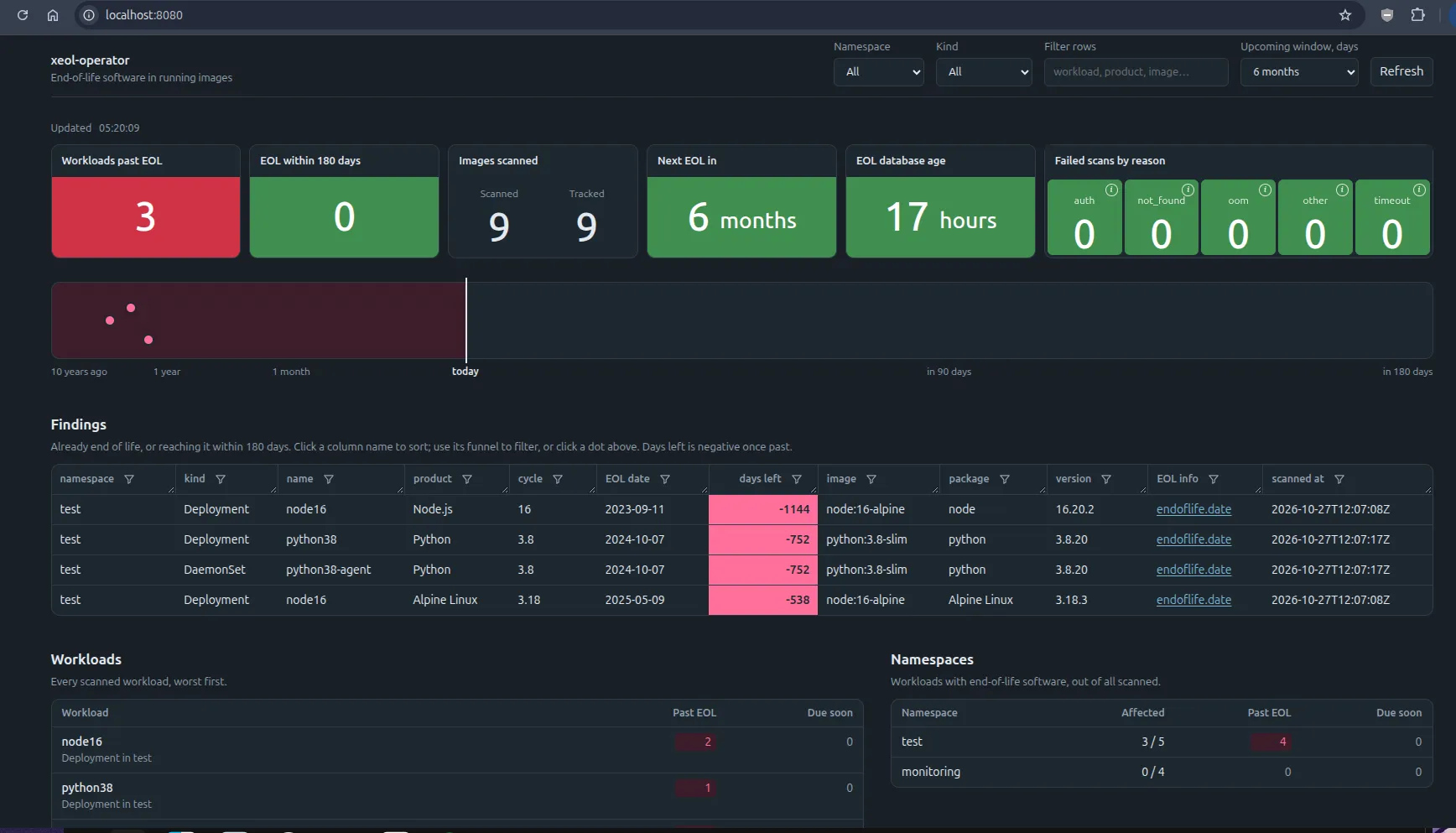
The page shows:
- Tiles: workloads past EOL, workloads due soon, days to the next EOL date, age of the EOL database, and failed scans by reason. Hover the ⓘ on a failure reason to see which workloads it affects.
- Timeline: one dot per product release, placed by EOL date. Dots left of the “today” line are already past EOL. Click a dot to filter the findings table to that release. Click it again to clear.
- Findings table: click a column name to sort. Use its funnel icon to filter by text or to tick specific values. Drag a header’s corner to resize a column.
- Workloads and Namespaces: counts per workload and per namespace, worst first.
The controls at the top narrow everything: Namespace, Kind, Filter rows and Upcoming window. Refresh reloads the data.
Vulnerabilities (trivy)
Section titled “Vulnerabilities (trivy)”With trivy.enabled, the same scan also lists known vulnerabilities. The web page then gets two tabs: EOL and Trivy. With eol.enabled=false, it shows only the Trivy report.
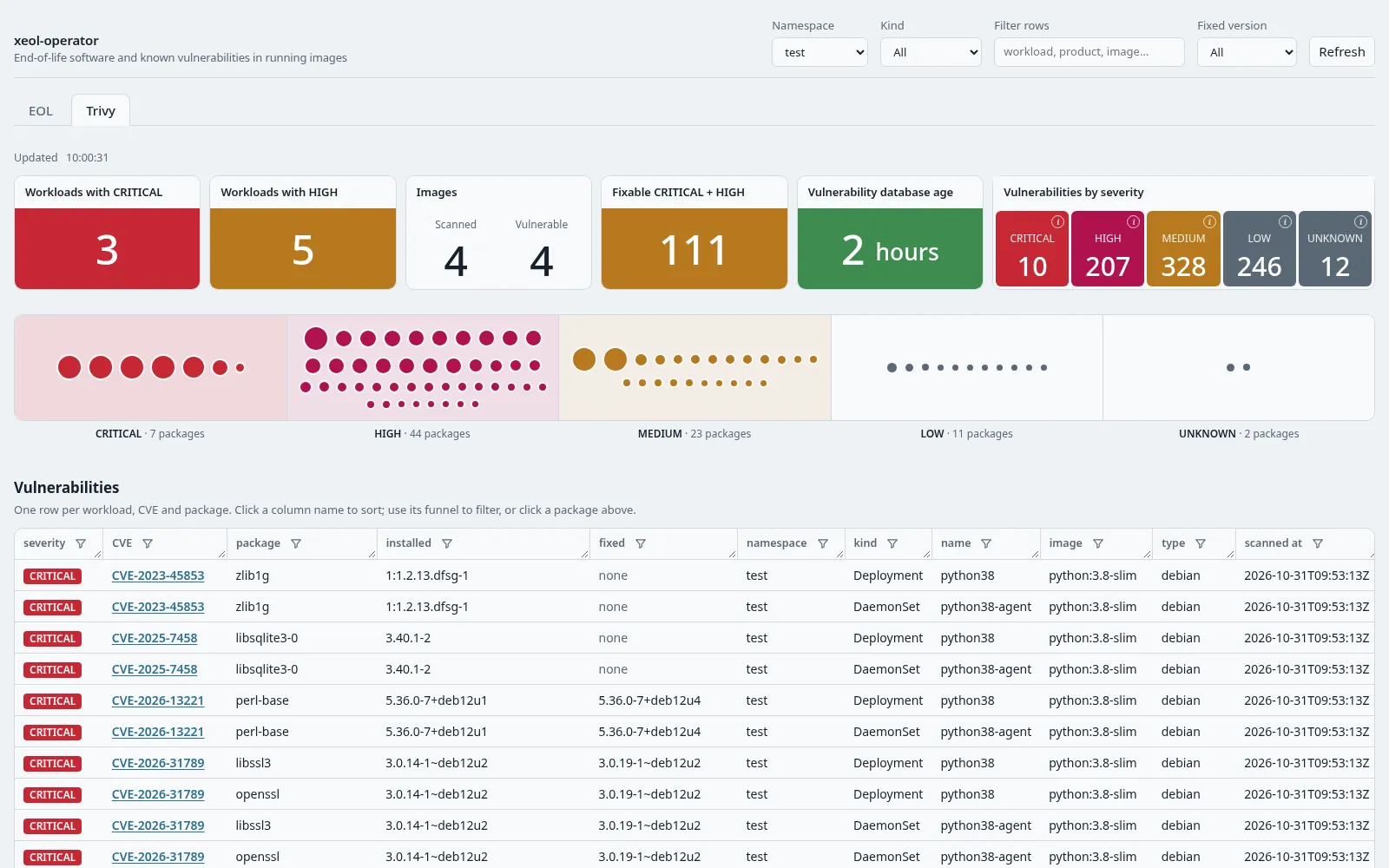
The Trivy tab shows:
-
Tiles:
- workloads with a CRITICAL,
- workloads with a HIGH (including those that also have a CRITICAL),
- images scanned, and images with a CRITICAL or HIGH,
- CRITICAL and HIGH vulnerabilities that have a fixed version,
- the trivy database’s age,
- counts per severity.
Counts are per image. So replicas, or several workloads on one image, don’t multiply them.
-
Package strip: one band per severity, CRITICAL on the left. Each dot is a vulnerable package. It sits in the band of its worst vulnerability and is sized by how many vulnerabilities it has. Click a dot to filter the table to that package. Click it again to clear.
-
Vulnerabilities table: one row per workload, CVE and package, worst first. The columns are severity, CVE (linked to its advisory; hover for the title), package, installed and fixed version, then namespace, kind, name and image. It shows the first 1,000 rows. To see more, narrow it with the filters, or get every row from
/api/v1/vulnerabilities. -
Workloads and Namespaces: CRITICAL, HIGH and fixable counts, worst first.
At the top, the Fixed version select replaces Upcoming window. It keeps only vulnerabilities that have a fix.
In Grafana, the xeol: vulnerabilities (trivy) dashboard has the same tiles and table, plus a Severity filter.
Prometheus and PromQL
Section titled “Prometheus and PromQL”The operator serves metrics on port 8080 at /metrics. The metric’s value is the EOL date. So you decide “how soon counts” in the query:
# already past EOLxeol_eol_date_seconds < time()
# EOL within 90 days(xeol_eol_date_seconds - time()) / 86400 < 90
# past-EOL findings per workload: join on the image digestsum by (namespace, kind, name) (  xeol_image_workload * on(digest) group_left count by (digest) (xeol_eol_date_seconds < time()))
The full metric list is in the README.
JSON API
Section titled “JSON API”The same port serves read-only JSON. It’s handy for scripts:
kubectl -n xeol-system port-forward svc/xeol-operator-metrics 8080curl -s 'localhost:8080/api/v1/findings?within_days=0' # already EOLcurl -s 'localhost:8080/api/v1/findings?namespace=prod&within_days=90'curl -s localhost:8080/api/v1/statusEndpoints: status, namespaces, workloads and findings. With trivy.enabled, also vulnerabilities.
Query parameters:
namespaceandkind: comma-separated.within_days: default 180.severity(vulnerabilities only): comma-separated, e.g.CRITICAL,HIGH.
With trivy on, status, workloads and namespaces also include vulnerability counts.
curl -s 'localhost:8080/api/v1/vulnerabilities?severity=CRITICAL&namespace=prod'AI assistants (MCP)
Section titled “AI assistants (MCP)”With mcp.enabled, AI assistants can read the same four views as read-only MCP tools at /mcp. Vulnerabilities aren’t an MCP tool yet. With the port-forward running, add the server:
claude mcp add --transport http xeol http://localhost:8080/mcpThen ask, for example, “which workloads in prod run software that is already end of life?”
With mcp.allowRescan as well, the assistant gets a rescan tool too; see Rescan now.
4. Choose what gets scanned
Section titled “4. Choose what gets scanned”You set scan settings in Helm values under scanner.*. The chart writes them to the config file, which is the ConfigMap xeol-operator-config. Put them in a values file:
# my-values.yamlscanner: namespaceSelector: # only namespaces with this label; {} = all matchLabels: {xeol-scan: "true"} excludeNamespaces: ["kube-*", "monitoring"] excludeImages: ["*/busybox*"] # globs on the image name workloadKinds: [Deployment, StatefulSet, DaemonSet] # default also includes Job and CronJob workloadLabels: [team] # adds a team label to metrics, for routing alerts interval: 24h # rescan each image this oftenhelm upgrade xeol-operator xeol-operator/xeol-operator -n xeol-system --reuse-values -f my-values.yamlIn globs (wildcard patterns), * matches anything, including /. ? matches one character.
Changes apply without a restart:
- The operator reloads the file once the kubelet updates it, usually within a minute.
- You can also edit the ConfigMap directly:
kubectl -n xeol-system edit configmap xeol-operator-config. But a laterhelm upgradeoverwrites it from your values. - A typo or bad value is rejected, and the previous config stays. See Errors.
5. Accept a known finding
Section titled “5. Accept a known finding”Sometimes you know about an EOL product and accept it. Maybe it’s a test environment, or software you can’t replace yet. Hide it with ignoreProducts.
The image is still scanned. The finding just disappears from metrics, alerts, the dashboard and the web page.
scanner: ignoreProducts: - products: [perl] # everywhere in namespace "test" namespaces: [test] - products: [python] # only Python 3.8, only in the batch team's workloads cycles: ["3.8"] selector: {matchLabels: {team: batch}}Use each product’s endoflife.date name, e.g. python, nodejs, debian. Not sure of the name? The url on each finding links to the product’s page, which shows it.
With trivy.enabled, accepted vulnerabilities work the same way with ignoreVulnerabilities, by CVE ID and/or package:
scanner: ignoreVulnerabilities: - ids: [CVE-2024-1234] # this CVE everywhere - packages: [libcrypto3] # this package, only in namespace "test" namespaces: [test]6. Get alerted
Section titled “6. Get alerted”With prometheusRule.enabled, the chart installs these alerts:
| Alert | Fires when |
|---|---|
XeolEOLSoftwareRunning |
A running image contains software past EOL. |
XeolEOLSoftwareSoon |
Software reaches EOL within prometheusRule.eolSoonDays (default 90). |
XeolDatabaseStale |
The EOL database is older than prometheusRule.dbStaleDays (default 30). |
XeolDatabaseMissing |
The operator has no EOL database. |
XeolScanErrors |
Images fail to scan. |
Route them in Alertmanager as usual. Want each team to get its own findings? Set scanner.workloadLabels: [team], then join on xeol_image_workload.
7. Private registries
Section titled “7. Private registries”Do your Pods already pull from a private registry with imagePullSecrets? Then there’s nothing to set up.
Here’s how it works:
- Each scan reads the pull secrets of the Pod running the image, plus those of the Pod’s ServiceAccount. This is the same thing the kubelet does.
- It reads each Secret from the API server when the scan starts.
- It writes the credentials to a
0600file that only that scan’ssyftandxeolcan see. - It deletes the file afterwards.
- Credentials are never cached or logged.
What works:
- Secrets of type
kubernetes.io/dockerconfigjson(and the olderkubernetes.io/dockercfg) in the Pod’s namespace. They must be referenced from the Pod’simagePullSecretsor its ServiceAccount’s. Several secrets are merged, and the one for the image’s registry is used. - Any registry that accepts those credentials: Docker Hub, GHCR, GitLab, Harbor, Artifactory, ECR, ACR, GCR/Artifact Registry.
What doesn’t:
- Pulls that don’t use a Secret. Some nodes pull with a cloud identity: the EKS node role, IRSA, AKS kubelet identity, GKE node service account, or a kubelet credential provider. That works for the kubelet, but the operator can’t see that identity. Those images fail with
reason="auth". To fix it, give the workload’s ServiceAccount animagePullSecretsentry, or add the images toexcludeImages. - Short-lived tokens that nobody refreshes. An ECR token in a Secret expires after 12 hours. Keep refreshing the Secret, with the usual CronJob or controller. The next scan reads the new one. A scan that fails with
authis retried after an hour.
Does an image have no pull secret? Create one and attach it to the ServiceAccount the workload uses:
kubectl -n payments create secret docker-registry regcred \ --docker-server=registry.example.com --docker-username=<user> --docker-password=<token>kubectl -n payments patch serviceaccount default -p '{"imagePullSecrets":[{"name":"regcred"}]}'To see which images fail on credentials, check xeol_scan_errors_total{reason="auth"} or the failure tiles on the web page.
For this to work, the operator needs get on Secrets in every namespace. The chart grants it, and the operator never lists Secrets. If that’s too broad for your cluster, skip those images with excludeImages.
Does the operator’s own image come from a private registry? Then set imagePullSecrets in the chart values. That’s a separate setting, for the operator’s pod.
8. Rescan now
Section titled “8. Rescan now”Each image is rescanned interval (default 24h) after its last scan. To get fresh results sooner, for example after you’ve updated an image or accepted new EOL data, queue a rescan yourself. Nothing restarts, and the databases are not refreshed.
From inside the operator’s pod:
kubectl -n xeol-system exec deploy/xeol-operator -- /manager rescan # every running imagekubectl -n xeol-system exec deploy/xeol-operator -- /manager rescan 'python:3.8*' 'registry.internal/*'queued 2 image(s) for a rescan: python:3.8-slim registry.internal/team/app:v1- The globs use the same syntax as
excludeImages. They match the image as written in the Pod spec (python:3.8-slim) or its repository (docker.io/library/python). Quote them so your shell doesn’t expand*. - Rescans go through the normal scan queue. An image already queued or being scanned isn’t scanned twice, and an image skipped after an out-of-memory kill stays skipped.
- Follow progress in
/api/v1/statusor the logs.
Who can do this: anyone allowed to exec into the operator’s pod. The command talks to the operator over a loopback-only port (127.0.0.1:8082), so nothing new is reachable from outside the pod.
From an AI assistant: set mcp.allowRescan=true (with mcp.enabled) to add a rescan tool with the same optional image globs. It’s off by default, because the MCP endpoint has no authentication: anyone who reaches port 8080 could then queue rescans. The cost is bounded, at most one extra scan of each image at a time.
Troubleshooting
Section titled “Troubleshooting”A workload is missing. Check three things:
- Its namespace isn’t excluded.
- Its top-level kind is in
scanner.workloadKinds(e.g. Deployment, not ReplicaSet). - Its image isn’t excluded.
Images loaded straight onto nodes have no registry digest. They can’t be scanned, so they’re skipped.
No findings, but I know something is old. The operator only detects products that endoflife.date tracks. “No findings” means nothing known is EOL, not that nothing is.
Failed scans. xeol_scan_errors_total and the web page’s failure tiles give the reason:
| Reason | Meaning | Fix |
|---|---|---|
auth |
The registry refused the pull. | Check the Pod’s (or its ServiceAccount’s) imagePullSecrets; see Private registries. |
not_found |
The image digest is no longer in the registry. | Usually harmless. It goes away when the workload is redeployed. |
timeout |
The scan took longer than scanner.timeout (default 10m). |
Raise scanner.timeout. |
oom |
The image needed more memory than the pod has. | Raise resources.limits.memory and scanner.goMemLimit together, e.g. 2Gi and 1600MiB. |
other |
Anything else. | See the operator’s logs. |
An image that fails with oom is skipped for 24 hours.
High db_age_seconds or XeolDatabaseStale alert. The daily database rebuild is failing. Usually endoflife.date is unreachable. Meanwhile, the operator keeps using the last good database. Check egress, or switch to a mounted database (Air-gapped installation).
Pod not Ready. The pod waits for the first database build. Check the logs for errors fetching endoflife.date.
Upgrade and uninstall
Section titled “Upgrade and uninstall”To upgrade:
helm repo updatehelm upgrade xeol-operator xeol-operator/xeol-operator -n xeol-system --reuse-valuesA new pod rescans everything from scratch. Coming from a chart version with the XeolScanner CRD? See Upgrading from the XeolScanner CRD.
To uninstall:
helm uninstall xeol-operator -n xeol-system