
Helm setup
The Helm chart is the supported way to install the operator. It gives you:
- one operator pod, with syft, xeol and trivy bundled,
- the scan config file, as a ConfigMap,
- optional wiring for Prometheus, alerts and a Grafana dashboard.
The chart is published at https://rishang.github.io/xeol-operator, one version per release. It is also listed on Artifact Hub. Its source is in helm/xeol-operator.

Requirements
Section titled “Requirements”- Helm 3.
- Egress to
endoflife.date(or see Air-gapped installation). - Egress to the registries your images come from.
- Optional, for the ServiceMonitor and PrometheusRule: the Prometheus Operator (e.g. kube-prometheus-stack).
- Optional, for the dashboard: Grafana with its sidecar, plus the Infinity plugin.
Install
Section titled “Install”Add the chart repository once:
helm repo add xeol-operator https://rishang.github.io/xeol-operatorhelm repo updateMinimal install (metrics only):
helm install xeol-operator xeol-operator/xeol-operator -n xeol-system --create-namespaceWith kube-prometheus-stack and Grafana:
# serviceMonitor.enabled Prometheus scrapes the EOL metrics (PromQL, history). Needs the Prometheus Operator.# prometheusRule.enabled Alert rules: EOL software running or due soon, stale DB, failing scans. Needs the ServiceMonitor.# grafanaDatasource.enabled Infinity datasource + dashboard, loaded by Grafana's sidecars. Needs the Infinity plugin.helm install xeol-operator xeol-operator/xeol-operator -n xeol-system --create-namespace \ --set serviceMonitor.enabled=true \ --set prometheusRule.enabled=true \ --set grafanaDatasource.enabled=trueThe pod turns Ready once the first EOL database build succeeds. Scanning starts then.
To add vulnerability scanning with trivy, run the command below. trivy reads the same SBOM, so there’s no second image pull. The pod also downloads trivy’s ~1.6 GB database before it turns Ready.
helm upgrade xeol-operator xeol-operator/xeol-operator -n xeol-system --reuse-values --set trivy.enabled=trueCheck that it works:
kubectl -n xeol-system logs deploy/xeol-operator | grep -E 'scanned|scan failed'kubectl -n xeol-system port-forward svc/xeol-operator-metrics 8080 &curl -s localhost:8080/api/v1/statuscurl -s localhost:8080/metrics | grep ^xeol_What gets installed
Section titled “What gets installed”| Kind | Name | When |
|---|---|---|
| ServiceAccount, ClusterRole, ClusterRoleBinding | xeol-operator |
always |
| Role, RoleBinding | xeol-operator-leader-election |
always |
| Service | xeol-operator-metrics (port 8080: /metrics, /api/v1/*) |
always |
| Deployment | xeol-operator |
always |
| ConfigMap | xeol-operator-config (the config file) |
always, from scanner.* |
| ServiceMonitor | xeol-operator |
serviceMonitor.enabled |
| PrometheusRule | xeol-operator |
prometheusRule.enabled |
| ConfigMap | xeol-operator-datasource |
grafanaDatasource.enabled |
| ConfigMap | xeol-operator-dashboard |
grafanaDatasource.enabled |
Notes:
xeol-operator-configis mounted at/etc/xeol-operator/.xeol-operator-dashboardholdsxeol.jsonwitheol.enabled, andxeol-trivy.jsonwithtrivy.enabled.
RBAC is read-only. The operator can read Pods, Namespaces, ServiceAccounts, Nodes, Secrets (only to read image pull secrets) and apps/batch workloads. The chart installs no CRD.
Features
Section titled “Features”Out of the box, the operator scans and serves /metrics and the JSON API (/api/v1/*) on port 8080. Everything else is opt-in.
Each feature reads the same in-memory results. None depends on another unless noted.
| Feature | Value | Gives you | Needs |
|---|---|---|---|
| Scan types | eol.enabled (on), trivy.enabled (off) |
End-of-life software and/or known vulnerabilities | trivy: egress to its DB registry or a mounted DB, a 5Gi volume |
| Metrics collection | serviceMonitor.enabled |
EOL findings in Prometheus: PromQL, history | Prometheus Operator |
| Alerts | prometheusRule.enabled |
Notifications through Alertmanager | Prometheus Operator, and the ServiceMonitor for data |
| Grafana dashboard | grafanaDatasource.enabled |
Datasource + ready-made dashboard | Grafana sidecars, Infinity plugin |
| Built-in web page | ui.enabled |
Dashboard without Grafana | A browser and kubectl port-forward |
| MCP tools | mcp.enabled |
Ask an AI assistant about EOL findings | An MCP client and kubectl port-forward |
| EOL data source | db.source |
Online (daily from endoflife.date) or a mounted DB | Egress, or a DB you ship |
Metrics collection: serviceMonitor.enabled
Section titled “Metrics collection: serviceMonitor.enabled”Use it to get findings into Prometheus. You can then query them with PromQL, keep history, and build your own panels or alerts.
Creates a ServiceMonitor. It tells the Prometheus Operator to scrape xeol-operator-metrics:8080/metrics every serviceMonitor.interval (60s).
How it works: on each scrape, the operator answers from memory. So an image that stops running loses its series straight away. The metrics are listed in the README.
Leave it off if you have no Prometheus Operator. You can still scrape the Service yourself. Or skip Prometheus entirely: the dashboard, web page and MCP don’t need it.
Check: in Prometheus → Status → Targets, the target serviceMonitor/xeol-system/xeol-operator is UP. By default, kube-prometheus-stack only selects ServiceMonitors labelled release: <its release>. If yours does, set serviceMonitor.labels.release.
Alerts: prometheusRule.enabled
Section titled “Alerts: prometheusRule.enabled”Use it to get told about EOL software, instead of having to look. It holds only alert rules (no recording rules), so nothing else depends on it.
Creates a PrometheusRule. Here’s the path an alert takes:
- The Prometheus Operator loads the rule into Prometheus.
- Prometheus evaluates it every minute and sends firing alerts to Alertmanager.
- Alertmanager routes them to Slack, PagerDuty, email and so on.
| Alert | Fires when | Severity |
|---|---|---|
XeolEOLSoftwareRunning |
Software already past EOL runs, for 10 minutes. | warning |
XeolEOLSoftwareSoon |
Software reaches EOL within prometheusRule.eolSoonDays (90), for 1 hour. |
info |
XeolDatabaseStale |
The EOL database is older than prometheusRule.dbStaleDays (30). |
warning |
XeolDatabaseMissing |
No EOL database for 30 minutes, so nothing is scanned. | warning |
XeolScanErrors |
More than 5 scans failed with one reason in the last hour, for 15 minutes. | info |
The last three tell you the operator itself is unhealthy. An empty dashboard can’t tell you that: no findings could mean “all good” or “scanning stopped”.
Alerts fire per image and product, not per workload. To route by team, set scanner.workloadLabels: [team]. Then write your own rule that joins xeol_image_workload on digest.
Leave it off in these cases:
- You have no Prometheus Operator. The
PrometheusRulekind won’t exist, and the install fails. - You write your own rules.
Without the ServiceMonitor, the rules have no data. Only XeolDatabaseMissing would fire.
Check: Prometheus → Alerts lists the xeol-operator group. Some setups select rules by label; if so, set prometheusRule.labels.release.
Grafana dashboard: grafanaDatasource.enabled
Section titled “Grafana dashboard: grafanaDatasource.enabled”Use it to get a ready-made Grafana dashboard. It shows:
- headline stats,
- EOL by namespace and workload,
- a per-workload product table (red past EOL, yellow within 6 months),
- the full findings list.
You can filter it by namespace, kind and an upcoming window.
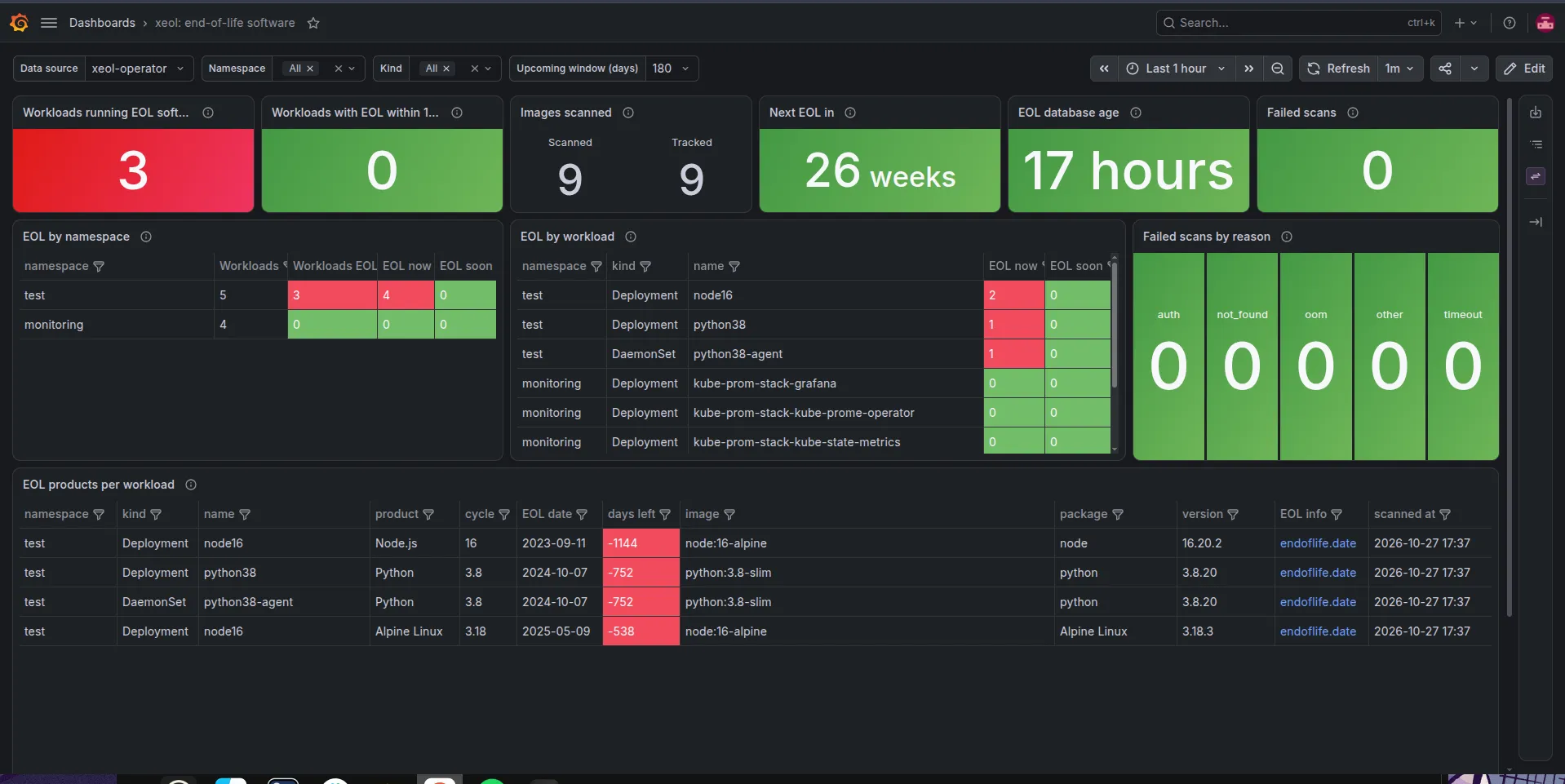
Creates two ConfigMaps in the operator’s namespace:
xeol-operator-datasource, labelledgrafana_datasource: "1": an Infinity datasource (uidxeol-operator) pointing athttp://xeol-operator-metrics.<namespace>.svc:8080.xeol-operator-dashboard, labelledgrafana_dashboard: "1": the dashboard JSON.
How it works: the chart never contacts Grafana. Instead:
- Grafana’s sidecar containers (
grafana-sc-datasourcesandgrafana-sc-dashboard, in the Grafana pod) watch for ConfigMaps with those labels. - They write them into Grafana’s provisioning folders and reload Grafana.
- The dashboard’s panels query the operator’s JSON API from the Grafana server, inside the cluster.
The dashboard doesn’t read Prometheus, so it works without the ServiceMonitor.
Needs on the Grafana side:
- The Infinity plugin (kube-prometheus-stack:
grafana.plugins: [yesoreyeram-infinity-datasource]). - Sidecars that watch the operator’s namespace. Set
grafana.sidecar.datasources.searchNamespaceandgrafana.sidecar.dashboards.searchNamespacetoALL(or to a list that includes it). - Matching labels. If your sidecars use other labels, change
grafanaDatasource.labels/grafanaDashboard.labels.grafanaDashboard.annotationscan set a folder (e.g.grafana_folder: Security). - Network access from Grafana to the operator’s Service on port 8080.
Leave it off if you have no Grafana sidecars. Then set things up by hand: add an Infinity datasource with uid xeol-operator and the URL above, and import helm/xeol-operator/dashboards/xeol.json.
Check: kubectl -n <grafana-ns> logs deploy/<grafana> -c grafana-sc-datasources | grep xeol shows Writing .../xeol-operator-datasource.yaml.
Built-in web page: ui.enabled
Section titled “Built-in web page: ui.enabled”Use it in clusters without Grafana, or for a quick look without setting up dashboards.
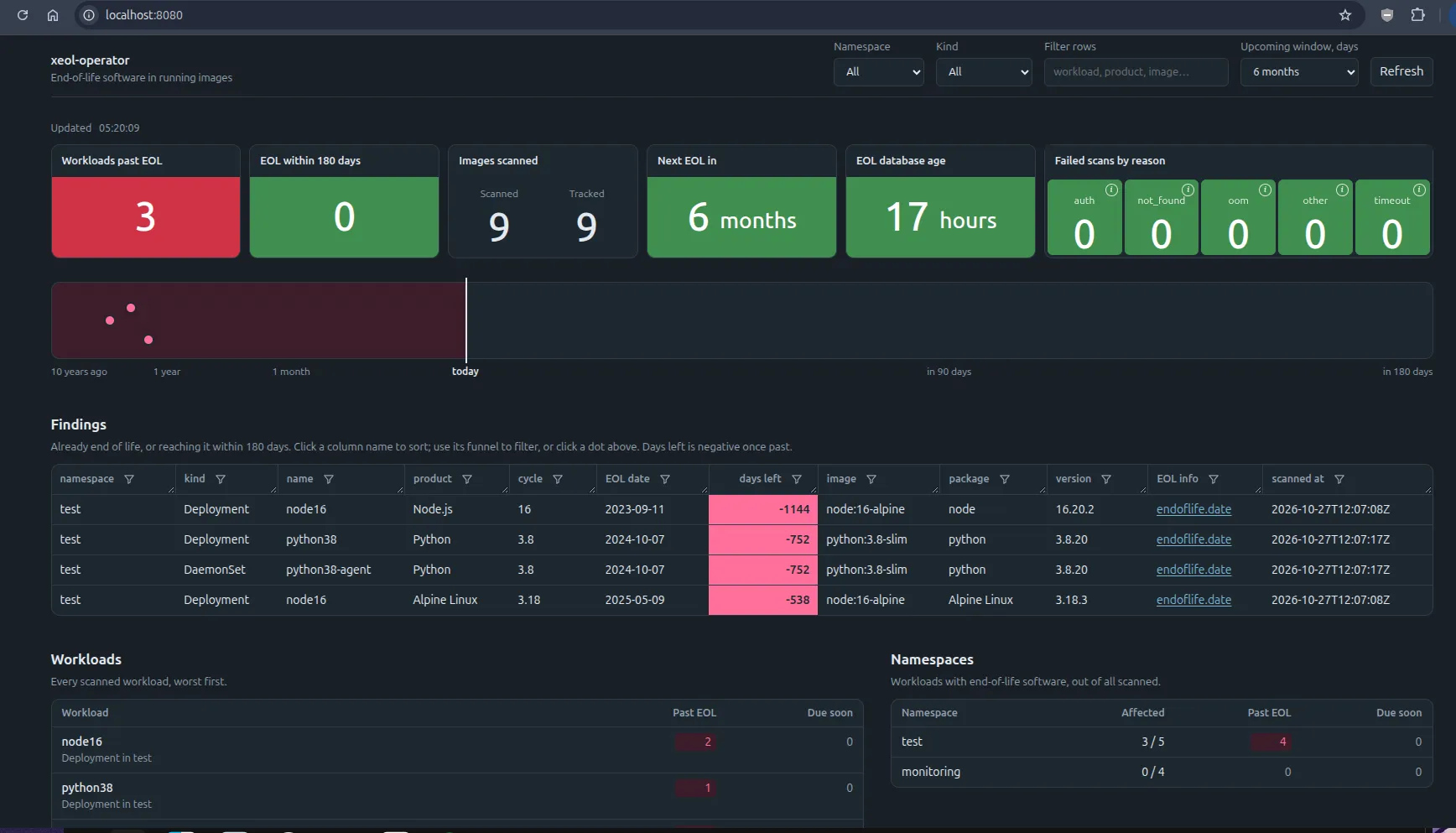
Serves a page at / on port 8080. It has:
- tiles: workloads past EOL and due soon, days to the next EOL, EOL database age, and failed scans by reason (hover ⓘ for the affected workloads);
- a timeline with one dot per product release, by EOL date; click a dot to filter the findings;
- a findings table with sorting, per-column filters and resizable columns;
- workload and namespace summaries, and namespace, kind, text and window filters.
kubectl -n xeol-system port-forward deploy/xeol-operator 8080 # then open http://localhost:8080/How it works: the operator renders the HTML. To update the page in place, the browser loads htmx 2.0.4 from jsDelivr (pinned and integrity-checked). If the browser has no internet access, filters still work by reloading the page. Nothing is stored; the page is read-only.
Leave it off if nobody will use it. It has no authentication. Reach it by port-forward, never through a public Ingress.
MCP tools: mcp.enabled
Section titled “MCP tools: mcp.enabled”Use it to ask an AI assistant questions like “which prod workloads run EOL software?”. This works with Claude Code, Claude Desktop, or any MCP client. (MCP, the Model Context Protocol, lets AI assistants call tools.)
Serves an MCP endpoint at /mcp (Streamable HTTP, stateless). It has four read-only tools: status, namespaces, workloads and findings. Each takes optional namespace, kind and within_days parameters. Each returns the same JSON as the matching /api/v1/* endpoint.
kubectl -n xeol-system port-forward deploy/xeol-operator 8080claude mcp add --transport http xeol http://localhost:8080/mcpLeave it off if you don’t use MCP clients. Like the web page, it has no authentication. Cross-origin browser requests are refused, so a web page can’t call it.
mcp.allowRescan (default false) adds a fifth tool, rescan, that queues an immediate rescan of all or matching images. It’s the only tool that changes anything, so it’s opt-in: anyone who reaches the port could queue rescans. Without it, rescan from inside the pod; see Rescan now.
Scan types: eol.enabled, trivy.enabled
Section titled “Scan types: eol.enabled, trivy.enabled”syft pulls and catalogs each image once. The resulting SBOM (a list of the software in the image) then goes to each enabled scanner. At least one scanner must be on; otherwise the chart refuses to render.
eol.enabled(defaulttrue): xeol matches the SBOM against the EOL database (db.*). When off, no EOL database is built or required. The EOL metrics, alerts, dashboard and web page tab are left out.trivy.enabled(defaultfalse):trivy sbommatches the same SBOM against trivy’s vulnerability database. It adds about 0.2 s and 150 MB per scan; peak memory is still syft’s. With trivy on you also get:- the metrics
xeol_vulnerabilities{digest,severity,fixable}(counts, never one series per CVE) andxeol_vuln_db_updated_timestamp_seconds; - the
/api/v1/vulnerabilitiesendpoint; - the
XeolVulnDatabaseStalealert; - the trivy Grafana dashboard and the web page’s Trivy tab.
- the metrics
- When a trivy step fails: the image keeps its EOL findings and its previous vulnerabilities. The failure counts as
xeol_scan_errors_total{reason="trivy"}and is retried after 1h. - trivy database: follows
db.source.- Online: downloaded at start and daily from
mirror.gcr.io/aquasec/trivy-db:2(fallbackghcr.io/aquasecurity/trivy-db:2, ortrivy.dbRepository). It’s stored in an emptyDir of sizetrivy.dbSizeLimit. - Mounted: read from
trivy.mounted.volume. - Either way, scans themselves never download anything or call out. Only the main database is used, not trivy’s Java database.
- Online: downloaded at start and daily from
- trivy only knows what syft records: OS and language packages. Software copied into an image outside a package manager (e.g. a Python built from source) has no vulnerability rows. The EOL scan still reports its version.
EOL data: db.source
Section titled “EOL data: db.source”online (default): the operator builds xeol’s database from endoflife.date at start and every day.
- The pod is Ready after the first build.
- A failed rebuild keeps the previous database and retries the next day.
- Needs egress to
db.url(or an internal mirror of it).
mounted: for air-gapped clusters. Build the database elsewhere and mount it read-only. It can come from a volume, or be copied out of an image by an init container. See Air-gapped installation.
Either way, three things tell you when the data is old: xeol_db_built_timestamp_seconds, db_age_seconds in /api/v1/status, and the XeolDatabaseStale alert.
Always on: JSON API and private registries
Section titled “Always on: JSON API and private registries”- JSON API:
GET /api/v1/{status,namespaces,workloads,findings}on port 8080. It’s meant for scripts and the Grafana dashboard. It’s read-only, with no authentication.- Filters:
namespace,kind(comma-separated) andwithin_days(default 180). - With
trivy.enabled, you also get/api/v1/vulnerabilities(filterseverity), and vulnerability counts in status, workloads and namespaces.
- Filters:
- Private registries: no setup needed. Each scan uses the
imagePullSecretsof a Pod running the image, and of its ServiceAccount. They’re written to a temporary file and deleted after the scan. For details and limits (pulls with a cloud identity, expiring tokens), see Private registries. - High availability:
replicas > 1runs standby pods via leader election. Only the leader scans and serves data. The others answer 503, and the web page shows “on standby”.
Values
Section titled “Values”Scan scope → the config file
Section titled “Scan scope → the config file”| Value | Default | Field in config.yaml |
|---|---|---|
scanner.namespaceSelector |
{} (all) |
namespaceSelector |
scanner.excludeNamespaces |
["kube-*"] |
excludeNamespaces |
scanner.excludeImages |
[] |
excludeImages |
scanner.interval |
24h |
interval |
scanner.workloadKinds |
null (Deployment, StatefulSet, DaemonSet, Job, CronJob); [] = every kind |
workloadKinds |
scanner.workloadLabels |
[] |
workloadLabels |
scanner.ignoreProducts |
[] |
ignoreProducts (accepted findings to hide) |
scanner.ignoreVulnerabilities |
[] |
ignoreVulnerabilities (accepted vulnerabilities to hide, with trivy) |
The chart renders these into the ConfigMap xeol-operator-config. The operator reloads it without a restart. For field behaviour, globs, live reload and errors, see Configuration.
You can also edit the ConfigMap directly. A later helm upgrade overwrites it from values.
Scan types
Section titled “Scan types”| Value | Default | Notes |
|---|---|---|
eol.enabled |
true |
EOL scanning with xeol. |
trivy.enabled |
false |
Vulnerability scanning with trivy on the same SBOM. |
trivy.dbRepository |
[] |
OCI repositories for the trivy DB, e.g. [registry.local/aquasec/trivy-db:2]. Empty uses trivy’s defaults. |
trivy.dbSizeLimit |
5Gi |
emptyDir for the DB (online). |
trivy.dbStaleDays |
7 |
Threshold for XeolVulnDatabaseStale. |
trivy.mounted.path / volume |
/trivy-db / {} |
With db.source=mounted: a read-only volume with the trivy DB. |
Details:
trivy.dbSizeLimitmust fit the current copy (~1.6 GB), plus one being downloaded, plus growth.- The
trivy.mountedvolume must hold<path>/db/trivy.dbanddb/metadata.json. It’s mounted read-only.
Scan resources → operator flags
Section titled “Scan resources → operator flags”| Value | Default | Notes |
|---|---|---|
scanner.workers |
1 |
Concurrent scans. Each needs its own memory headroom. |
scanner.timeout |
10m |
Per image. |
scanner.goMemLimit |
800MiB |
GOMEMLIMIT for syft, xeol and trivy. Keep it below resources.limits.memory. |
scanner.maxProcs |
2 |
GOMAXPROCS for syft, xeol and trivy. |
resources |
requests 100m / 256Mi, limit 1Gi | Pod CPU and memory. |
scanTmp.sizeLimit |
4Gi |
/tmp emptyDir for image layers during a scan. |
What happens when an image’s scan needs more memory than the limit:
- It OOM-kills the container once (out of memory).
- The image is then skipped for 24h.
- It’s reported as
xeol_scan_errors_total{reason="oom"}.
Small images scan in about 200 MB. Large ones (e.g. grafana) peak around 0.7 GB. If you see reason="oom", raise resources.limits.memory and scanner.goMemLimit together.
EOL database
Section titled “EOL database”| Value | Default | Notes |
|---|---|---|
db.source |
online |
online: built from endoflife.date at start and daily. mounted: read a prebuilt DB. |
db.url |
endoflife.date products/full |
Point at an internal mirror if needed. |
db.mounted.path |
/xeol-db |
|
db.mounted.volume |
{} |
Any volume source holding <path>/1/xeol.db, mounted read-only. |
db.mounted.initContainer.image |
"" |
Copy the DB out of an image at startup. Wins over volume. |
Recipes: Air-gapped installation.
Prometheus and Grafana
Section titled “Prometheus and Grafana”| Value | Default | Notes |
|---|---|---|
metrics.port |
8080 |
Plain HTTP. Serves /metrics, the JSON API, and the UI and MCP when enabled. |
ui.enabled |
false |
Server-rendered HTML UI at / (findings, workloads, namespaces). |
mcp.enabled |
false |
MCP over HTTP at /mcp, with read-only tools. |
mcp.allowRescan |
false |
Adds the MCP rescan tool. No auth: anyone who reaches the port can queue rescans. |
serviceMonitor.enabled / interval / labels |
false / 60s / {} |
Add e.g. {release: kube-prom-stack} if your Prometheus selects by label. |
prometheusRule.enabled / labels |
false / {} |
Alert rules only; see Alerts. |
prometheusRule.eolSoonDays |
90 |
Threshold for XeolEOLSoftwareSoon. |
prometheusRule.dbStaleDays |
30 |
Threshold for XeolDatabaseStale. |
grafanaDatasource.enabled |
false |
Infinity datasource (uid xeol-operator) pointing at the JSON API, plus the dashboards that use it. |
grafanaDashboard.labels / annotations |
grafana_dashboard: "1" / {} |
Labels and annotations on the dashboard ConfigMap. |
Details:
ui.enabled: the browser loads htmx 2.0.4 from jsDelivr (pinned, SRI, i.e. integrity-checked). Without it, filters still work by reload.mcp.enabled: Streamable HTTP, stateless. The tools arestatus,namespaces,workloadsandfindings.grafanaDatasource.enabled: the dashboards are EOL (eol.enabled) and vulnerabilities (trivy.enabled), linked to each other.grafanaDashboard.*: the dashboard ConfigMap is installed with the datasource and picked up by Grafana’s dashboard sidecar. Useannotationsto set a folder.
What each of these does and needs: Features.
These values control the operator pod itself:
image.repository,image.tag(defaults to the chartappVersion),image.pullPolicyimagePullSecrets(for the operator image itself)replicas(extra replicas are standby via leader election)podAnnotations,nodeSelector,tolerations,affinity,priorityClassName
Example values file
Section titled “Example values file”scanner: namespaceSelector: matchLabels: {xeol-scan: "true"} excludeNamespaces: ["kube-*", "monitoring"] workloadLabels: [team] interval: 24h ignoreProducts: - products: [perl] namespaces: [test] goMemLimit: 1600MiB # below the 2Gi limitresources: limits: {memory: 2Gi} requests: {cpu: 100m, memory: 256Mi}serviceMonitor: enabled: true labels: {release: kube-prom-stack}prometheusRule: enabled: true labels: {release: kube-prom-stack}grafanaDatasource: enabled: true # datasource + dashboardInstall or upgrade with it:
helm upgrade --install xeol-operator xeol-operator/xeol-operator -n xeol-system --create-namespace -f my-values.yamlUpgrade
Section titled “Upgrade”helm repo updatehelm upgrade xeol-operator xeol-operator/xeol-operator -n xeol-system --reuse-valuesA new pod starts with an empty state volume and rescans everything.
Upgrading from a chart version that still had the XeolScanner CRD? See Upgrading from the XeolScanner CRD.
Uninstall
Section titled “Uninstall”helm uninstall xeol-operator -n xeol-system